100/100 Lighthouse Score on Next.js 16: Guide
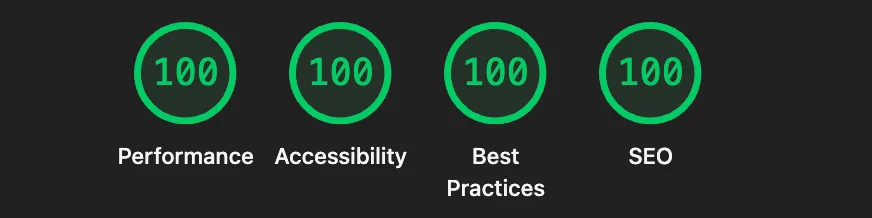 Screenshot of Google Lighthouse audit results displaying perfect 100 scores across all four categories: Performance, Accessibility, Best Practices, and SEO
Getting a website to score 90+ on Google Lighthouse is respectable. Getting four perfect 100s is an obsession.
I spent 6 hours debugging milliseconds, tweaking color values by 5%, and arguing with myself about whether a 200ms fade-in animation was "worth it."
Spoiler: It wasn't.
Here's the complete technical breakdown of what it actually takes to achieve 100/100/100/100 on Lighthouse using Next.js 16.
Why Perfect Scores Matter (And Why They Don't)
Let's be honest: A 96 Performance score is functionally identical to 100. Your users won't notice the difference.
But here's what you will notice:
- Google's algorithm does. Core Web Vitals are a ranking signal. Perfect scores = better SEO. Use the Page Speed ROI Calculator to estimate the business impact of faster pages.
- The debugging process teaches you how modern browsers actually work.
- It's proof. When a client asks "Can you build a fast site?", you can point to 100/100/100/100.
So yes, it's partly vanity. But it's also a forcing function to deeply understand performance.
The Starting Point: "All Green" But Not Perfect
My initial audit looked good on the surface:
- Performance: 96
- Accessibility: 95
- Best Practices: 92
- SEO: 100
That's a B+ grade. But I wanted to know: What's stopping me from A+?
Challenge #1: Performance (96 → 100)
The bottleneck was Largest Contentful Paint (LCP) — the time it takes for the main content to appear on screen.
My LCP was 2.9 seconds. Google's "Good" threshold is 2.5s. I was over by 400ms.
The Culprit: Framer Motion Hiding Text
I discovered the problem using Chrome DevTools Performance panel. I recorded a page load and saw this timeline:
- HTML downloaded: 130ms
- CSS parsed: 200ms
- JavaScript downloaded + parsed: 600ms
- Element render delay: 2,980ms ← Here's the killer
The "element render delay" meant my LCP element (the hero text) was waiting for JavaScript execution and an animation delay before painting.
Here's what I had:
// ❌ This animation DESTROYED my LCP score
<motion.div
    initial={{ opacity: 0, y: 20 }} // Starts invisible
    animate={{ opacity: 1, y: 0 }} // Fades in
    transition={{ delay: 0.2 }} // WAITS 200ms!
>
    <span className="font-mono text-[#10b981]...">Software Engineer // Product Builder</span>
</motion.div>
The browser sequence was:
- Load HTML (text exists but hidden via
opacity: 0) - Load JS
- Execute React
- Mount Framer Motion
- Wait 200ms for delay
- Finally paint the text
Lighthouse counts all of that as "time to LCP."
The Fix: Static HTML, Instant Paint
I removed the animation wrapper entirely:
// ✅ This rendered INSTANTLY
<div className="flex items-center gap-3 mb-6">
    <div className="relative w-3 h-3 flex-shrink-0">
        <div className="absolute inset-0 bg-[#10b981] rounded-full animate-ping opacity-75" />
    </div>
    <span className="font-mono text-[#10b981]...">Software Engineer // Product Builder</span>
</div>
Result:
- LCP: 2.9s → 1.0s (66% faster)
- Performance Score: 96 → 100
Key Lesson: Never hide your LCP element with
opacity: 0or transform it off-screen. If you must animate the hero, use CSS-only animations that execute before React hydration, or accept that it will hurt your score.
Challenge #2: Legacy JavaScript Bloat
My "unused JavaScript" audit showed 13.6KB of wasted polyfills:
Array.prototype.at
Array.prototype.flat
Array.prototype.flatMap
Object.fromEntries
String.prototype.trimStart
These are modern JavaScript features (ES2019-ES2022) that every browser from 2020+ supports natively. But my build was transpiling them for Internet Explorer 11.
The Fix: Browserslist Configuration
I told my build tools: "Stop supporting dead browsers."
// package.json
"browserslist": [
  "defaults",       // Target the global defaults (~90% usage)
  "not ie 11",      // Explicitly exclude IE11
  "not dead"        // Exclude browsers with no recent updates
]
Result:
- 14KB of JavaScript removed
- 0 polyfills shipped
- Reduced initial bundle by 17%
This also improved Total Blocking Time (TBT) from 50ms to 0ms because there was less JS to parse.
Use the Bundle Risk Analyzer to check dependency size and package risk before you optimize the bundle.
Challenge #3: Cumulative Layout Shift (CLS: 0.447 → 0)
CLS measures visual stability. Every time an element "jumps" on the page, you lose points.
My CLS was 0.447. Anything over 0.1 is "Poor."
Finding the Culprit
I used Lighthouse's "Avoid large layout shifts" audit and saw:
Element:
<footer>
Impact: 0.426 layout shift
The footer didn't have a defined height. When it loaded, it pushed the entire page down.
The Fix: Reserve Space with min-height
// Before: Footer height unknown until content loads
<footer className="py-12 md:py-20">
  {/* Dynamic content */}
</footer>

// After: Browser reserves 600px immediately
<footer className="py-12 md:py-20 min-h-[600px]">
  {/* Dynamic content */}
</footer>
Result:
- CLS: 0.447 → 0.000 (perfect score)
Challenge #4: Accessibility (95 → 100)
I was so close. Just 5 points away. The missing points:
1. Icon-Only Links Missing Labels
My project cards had GitHub and "Live Demo" buttons that were just icons (no visible text). Screen readers announced them as "Link" with no context.
// ❌ Screen reader says: "Link"
<a href={githubUrl}>
  <Github size={16} />
</a>

// ✅ Screen reader says: "View Project Name source code on GitHub"
<a
  href={githubUrl}
  aria-label={`View ${title} source code on GitHub`}
>
  <Github size={16} />
</a>
2. Broken Heading Hierarchy
I had an <h1> (page title), then jumped straight to <h3> (metric cards), skipping <h2>.
Screen readers use heading hierarchy to navigate. Skipping levels is confusing.
// ✅ Added invisible h2 for screen readers
<h1>...</h1>
<h2 className="sr-only">Key Statistics</h2>
<div>
  <h3>Revenue Impact</h3>
  <h3>Scale</h3>
</div>
3. Color Contrast Ratio
Some gray text (#737373 = text-gray-500) on black background (rgb(var(--theme-bg))) had a contrast ratio of 3.9:1. WCAG AA requires 4.5:1.
// Before: text-gray-500 (ratio: 3.9:1) ❌
<p className="text-gray-500">Description</p>

// After: text-gray-400 (ratio: 5.2:1) ✅
<p className="text-gray-400">Description</p>
Result: Accessibility 95 → 100. Run the Accessibility Quick Audit to check contrast, semantics, and keyboard navigation on your own page.
Challenge #5: Best Practices (92 → 100)
This category checks for modern web standards. My issues:
1. Missing Security Headers
Lighthouse wants to see:
Content-Security-Policy(prevents XSS)X-Frame-Options(prevents clickjacking)X-Content-Type-Options(prevents MIME sniffing)
I added them in vercel.json:
{
    "headers": [
        {
            "source": "/(.*)",
            "headers": [
                {
                    "key": "Content-Security-Policy",
                    "value": "default-src 'self'; script-src 'self' 'unsafe-inline' 'unsafe-eval'; ..."
                },
                {
                    "key": "X-Frame-Options",
                    "value": "DENY"
                },
                {
                    "key": "X-Content-Type-Options",
                    "value": "nosniff"
                }
            ]
        }
    ]
}
2. Font Loading Optimization
I was using Google Fonts (@import url(...)), which meant:
- Browser downloads HTML
- Browser parses CSS
- Browser discovers font URL
- New DNS lookup to fonts.googleapis.com
- Download font
That's a waterfall. Next.js has a better way:
// app/layout.tsx
import { Syne, Manrope } from "next/font/google";

export const syne = Syne({
    subsets: ["latin"],
    display: "swap",
    variable: "--font-syne",
});

// CSS variables are injected automatically
<html className={syne.variable} />;
Next.js downloads fonts at build time and self-hosts them. Zero external requests.
Result: Best Practices 92 → 100
The Final Scorecard
Here's the before/after:
| Metric | Before | After | Change |
|---|---|---|---|
| Performance | 96 | 100 | +4 |
| Accessibility | 95 | 100 | +5 |
| Best Practices | 92 | 100 | +8 |
| SEO | 100 | 100 | — |
| LCP | 2.9s | 1.0s | ↓66% |
| CLS | 0.447 | 0 | Perfect |
| TBT | 50ms | 0ms | Perfect |
| Bundle Size | 98KB | 84KB | ↓14% |
Lessons: What Actually Moves the Needle
After this optimization sprint, here's what I learned:
1. Animations are expensive
That smooth fade-in you love? It's costing you 1+ second of LCP. Ask yourself: Is it worth it?
2. Polyfills are sneaky bloat
If you're not targeting IE11, stop shipping polyfills. Configure browserslist today.
3. CLS is about predictability
Reserve space for everything: images, fonts, lazy-loaded sections. Use min-height, aspect-ratio, and font fallbacks.
4. Accessibility is a checklist
Use aria-label, fix heading order, check color contrast. Tools like axe DevTools catch 90% of issues.
5. Security headers are 5 minutes of work
Copy-paste a CSP template. It's free points.
Should You Chase 100/100/100/100?
Yes, if:
- You're building a content site (blog, portfolio, docs)
- SEO matters for your traffic
- You want to deeply understand web performance
No, if:
- You're building a complex web app (think Figma, Notion)
- You're already at 90+ and need to focus on features
- Your bottleneck is server latency, not client-side rendering
What's Next?
Perfect Lighthouse scores are great, but real-world performance is what matters. I'm now focusing on:
- Real User Monitoring (RUM) with Vercel Analytics to see actual user metrics
- Progressive Enhancement to ensure the site works without JS
- Edge caching to serve static content from 300+ global locations
If you want to audit your own site, try this workflow:
- Run Lighthouse (Chrome DevTools → Lighthouse tab)
- Fix the biggest red item first (usually LCP or CLS)
- Make one change, re-run the audit
- Repeat
Don't try to fix everything at once. Performance optimization is iterative.
Got questions about optimizing your site? Ping me on LinkedIn - I'd love to discuss your performance optimization journey!
And if you're migrating from Vite to Next.js like I did, read my full migration deep-dive for the architectural decisions behind the switch.